Playing Lethal Ape on a phone flips the entire control scheme. The Roblox build is officially cross-platform with mobile support, but touchscreen players lose the precision of a mouse, the tactile feedback of a keyboard, and most of the muscle memory desktop survivors rely on. This guide maps out the full Lethal Ape mobile controls layout, breaks down the touchscreen quirks that make chases harder on a small screen, and walks through the Roblox download so you can go from a fresh install to a clean Lab escape without learning everything the hard way.
Lethal Ape Mobile Controls: The Full Touchscreen Layout
Roblox does not expose a custom Lethal Ape control scheme on its own. Instead, the game uses the default Roblox mobile movement joystick on the left thumb and a stack of action buttons on the right thumb, with extra gestures filling the gap. If you have ever played Gorilla Tag or any other Roblox horror title on a phone, the layout will feel instantly familiar, but the Lethal Ape control mapping has a few specifics that matter for chase survival.
The two thumbs handle 90% of the input during a run: the left joystick drives your ape avatar through corridors, the right side fires interact prompts, jumps, crouches, and any gear you have equipped. Roblox also layers a hidden jump mechanic that is the single biggest reason mobile runs die early: a single quick tap on the screen anywhere outside a button acts as a short hop, while a sustained press becomes a longer arc.
The Left Thumb: Movement and Sprint
The left thumb sticks to the floating joystick. Pushing forward walks the ape, pulling back walks backward, and pushing diagonally strafes around door frames. Sprint is the big difference from desktop play. On a phone you tap the sprint button that sits just above the joystick and hold the direction at the same time. Releasing the sprint button drops you back to a walk, and the stamina bar refills the same way it does on PC.
Because phone screens are small, sprinting while strafing is the most common cause of clipping through a corner into a monster. The fix is to keep the sprint button under the right thumb and only use short bursts when you have a clear corridor ahead.
The Right Thumb: Jump, Crouch, Interact, Gear
The right side of the screen is a stack of three buttons. Jump sits on top, crouch or interact in the middle, and your equipped gear on the bottom. The crouch and interact buttons are context-sensitive. Walking up to a keycard panel promotes the button to interact, walking into a vent promotes it to crouch, and standing still in a chase promotes it to nothing.
Gear buttons only appear once you have bought something from the lobby shop, so the right thumb stack on a fresh install is just jump and interact. As you accumulate coins and unlock new items, the stack grows and your right thumb has less free space to swipe for camera look, which is the other big mobile control challenge. Holding the phone in landscape and keeping both thumbs planted is the only way to keep the camera stable.
Hidden Gestures: Camera, Tap-Jump, Two-Finger Crouch
Roblox mobile adds three gestures Lethal Ape does not show in any on-screen tutorial. Swiping anywhere on the right half of the screen rotates the camera, which is critical for spotting monsters in side rooms before they break line of sight. A two-finger tap anywhere on screen triggers the silent crouch, which does not alert nearby monsters the way a normal crouch button press does. A double-tap with a single finger acts as a quick hop, which is faster than the regular jump button but costs more stamina.
The community calls the two-finger crouch the "ghost crouch" because it makes the ape nearly silent in the vents. If you master that gesture, you can route around the Yellow Room without ever pulling aggro from Sandman, which is the single biggest skill gap between mobile players and desktop players on the same map.
| Gesture | Trigger | Effect | Stamina Cost | Best Use |
|---|---|---|---|---|
| Sprint button | Hold with right thumb | Move at full speed | High | Escaping chase corridor |
| Quick hop | Single-finger double-tap | Short jump, faster than button | Medium | Dodging Sandman grab |
| Long jump | Hold jump button | Full arc, reaches higher vents | High | Reaching secret badge rooms |
| Ghost crouch | Two-finger tap | Silent crouch, no aggro pull | None | Vents, Yellow Room routing |
| Camera swipe | Drag right side | Look around corner | None | Spotting Dus before line of sight |
Setting Up Lethal Ape Pocket Edition and the Roblox App
There is no standalone "Lethal Ape Pocket Edition" on the App Store or Google Play. The mobile path into the game is the Roblox client, and most players find their way in through one of three routes: the official Roblox page, the in-game search bar, or a shared link from a friend. Each route is roughly the same in terms of what the phone sees, but the download step is where new players get stuck.
The Lethal Ape pocket edition conversation in the community usually refers to either the Roblox client running Lethal Ape on a phone, or the standalone Android APK hosted on itch.io. The Roblox route is the official one and the one that connects you to the live 20-player servers; the itch.io route is a fan-built Lethal Ape by Stella Dev that recreates the Lab with three monsters and is roughly 170 MB. Both count as legitimate mobile play, but only the Roblox client syncs with the badge leaderboard and the in-game economy.
The Roblox Download Walkthrough
The download flow on a fresh phone is Roblox first, then Lethal Ape inside Roblox. Roblox is a free install on both iOS and Android, and once it is open the Lethal Ape page is one search away. The official Lethal Ape Roblox page is the safest entry point because it has the verified creator credit and the live server count. The page also links the in-game group where badges and updates get posted first, so it doubles as a community hub.
| Step | Action | Where | Approx Time |
|---|---|---|---|
| 1 | Install Roblox from the App Store or Google Play | Phone home screen | 2-3 minutes |
| 2 | Open Roblox and create or sign in to an account | Roblox login screen | 1 minute |
| 3 | Tap the search icon and type Lethal Ape | Roblox discover tab | 30 seconds |
| 4 | Select the Lethal Ape entry by gub_dev | Search results | 10 seconds |
| 5 | Tap the green Play button | Game page | 1-2 minutes first run |
| 6 | Pick a server from the lobby | Server list | 30 seconds |
The first time the game loads, Roblox pushes a small asset bundle to your device. On a fresh install that bundle can take 60-90 seconds over Wi-Fi, and on cellular it can stretch to 3-4 minutes. After the first run the assets are cached and the Play button drops you straight into the lab, which is one reason returning players feel the game feels faster to load.
For players who want a single-link shortcut, the Lethal Ape on Roblox page is the verified entry. The page shows the live visit count, the server count, and the creator credit, so it is the safest way to confirm you are joining the real game and not a clone. As of September 2026, the page lists roughly 340 million visits and about 17,000 concurrent players, which lines up with the community-reported numbers on the r/robloxlethalape subreddit.
Touch Sensitivity and Display Tweaks
Roblox does not let individual games override the system touch sensitivity, so a lot of the Lethal Ape mobile controls feel comes from the phone's accessibility settings. iOS users can bump pointer acceleration under Settings → Accessibility → Touch → Touch Accommodations, and Android users can do the same under Settings → System → Languages and input → Pointer speed. The community generally recommends the middle setting, not the fastest, because the highest sensitivity makes the joystick overshoot door frames.
Display brightness matters more than people think. The Lab has dark corridors and the monsters blend into shadow, so a brighter screen reduces the chance of missing a Sandman patrol on your first pass. Landscape orientation is the only sensible choice for play, and the phone's auto-rotate lock should be turned on so the screen does not flip mid-chase.
Surviving the First Chase on a Small Screen
The first chase is where most mobile players lose their first run. The chase is a high-stakes moment that punishes any hesitation, and on a phone the hesitation is built in: the joystick is too sensitive, the sprint button is too far from the jump button, and the camera swipes fight the same thumb that has to crouch. Surviving the first chase on a small screen comes down to three habits: keep the right thumb planted, hold sprint before you turn the corner, and use ghost crouch in vents.
The First 60 Seconds of a Run
The first minute of a run is the same on every platform: spawn into the Lab, look around for the nearest exit, and start moving before Sandman finishes his patrol loop. On mobile the spawn animation is shorter than on PC because the game skips a few loading frames to compensate for the smaller hardware, which means the first monster sound cue hits about 10 seconds sooner than a desktop player would hear it.
The single biggest first-minute mistake is holding the phone in portrait. Portrait cuts the action button stack in half and forces the joystick to share screen real estate with the camera, so every swipe rotates your view while you try to sprint. Landscape gives the left thumb the full width of the screen for the joystick and the right thumb the full right half for buttons and camera, and that is the layout every speedrun clip on YouTube uses.
Reading Monster Audio on Phone Speakers
Phone speakers are smaller than desktop speakers and they cut the low end of the audio, which means the Dus rumble that desktop players hear as a clear warning is harder to catch on a phone. The fix is to wear earbuds. Any wired earbuds will pick up the monster audio cues that phone speakers muffle, and it is the single biggest audio upgrade a mobile player can make.
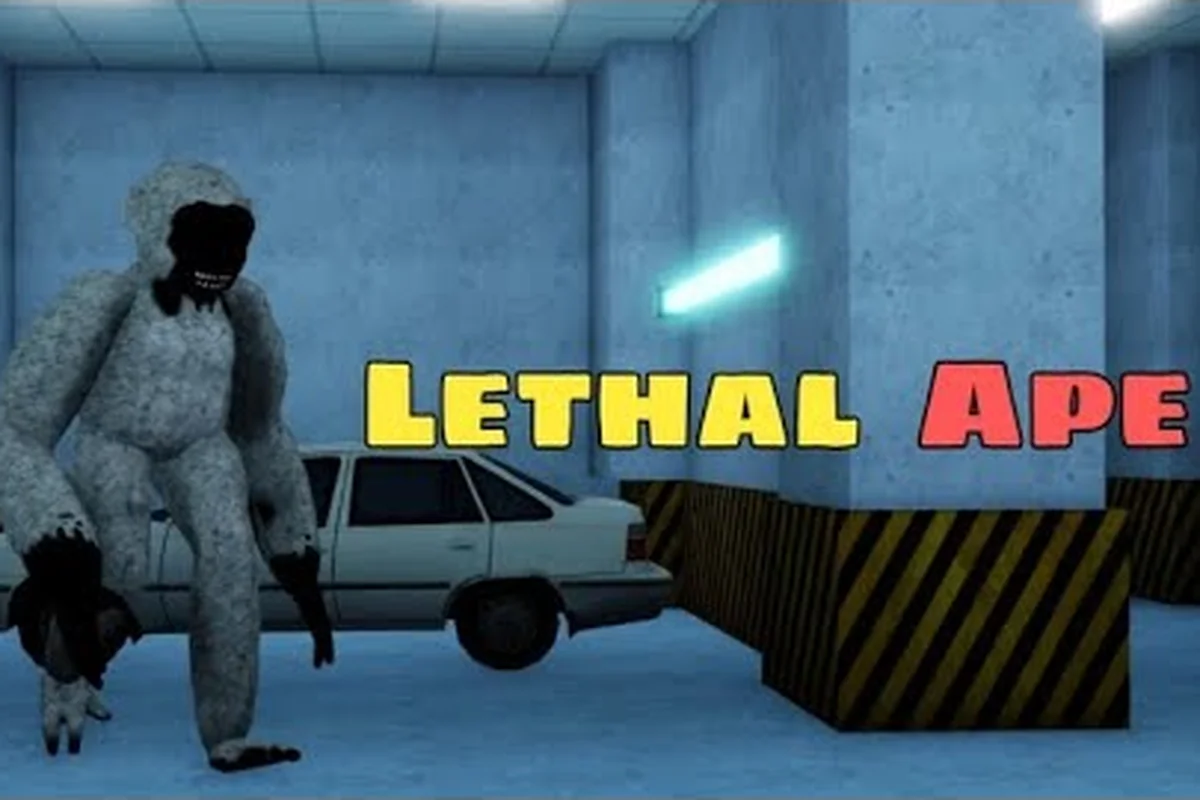
The community audio guide on the Roblox Lethal Ape monster roster lists roughly 55 monsters across the game's history, and each monster has a distinct audio signature. On a phone, the only way to learn the full audio map is with earbuds, because the built-in speakers flatten the differences between Sandman's footsteps and Dus's whisper. After a few runs with earbuds, the mobile player gets the same audio reaction time as a desktop player with headphones.
Chase Discipline: When to Run, When to Hide
The Lab and the Forest gamemodes have different chase rhythms, but the same discipline applies: break line of sight first, find cover second, reset the chase third. On mobile, line of sight breaks are easier because the camera swipe is faster than a mouse turn, but the cover step is harder because the small screen makes it easier to misjudge a doorway.
| Chase Step | Mobile-Specific Action | Common Mistake |
|---|---|---|
| Break line of sight | Swipe camera to confirm monster path, then sprint away | Running before confirming path |
| Find cover | Crouch button, then back into a corner | Standing in open doorway |
| Reset the chase | Hold still for 3-5 seconds, then move | Re-engaging after one second |
| Escape | Use ghost crouch in vents | Standing up before vent exit |
The vent routing is where mobile players can actually beat desktop players. A two-finger ghost crouch on a phone is easier to chain than the same crouch on a keyboard because both thumbs are already in motion, and the smaller screen makes the vent openings feel tighter, which forces cleaner jumps.
Advanced Mobile Settings: Boost, Performance, and Battery
The Roblox client lets the game ask for more hardware resources, and on mobile that is the difference between a smooth chase and a slideshow. The performance settings are buried in the Roblox settings menu and they apply globally, so dialing them up for Lethal Ape also dials them up for every other Roblox game, which is a tradeoff worth understanding before you change anything.
The two settings that matter most for Lethal Ape are graphics quality and frame rate cap. Higher graphics look better but drain battery faster and can drop the frame rate during chases, which is the worst possible time for a stutter. Lower graphics look rougher but hold a stable frame rate, and a stable frame rate is worth more than pretty lighting when Sandman is one corridor away.
Recommended Mobile Settings
| Setting | Low-End Phone | Mid-Range Phone | High-End Phone |
|---|---|---|---|
| Graphics Quality | Manual Low | Manual Medium | Automatic |
| Frame Rate Cap | 30 FPS | 60 FPS | 60 FPS |
| Resolution Scale | 0.7x | 0.85x | 1.0x |
| Battery Saver | Off | Off | On if needed |
| Wi-Fi Only | On for first download | On for first download | Optional |
The frame rate cap is the single most important setting. Chases in Lethal Ape last 5-15 seconds, and a frame drop in the middle of a jump can mean the difference between a clean escape and a Sandman grab. On low-end phones, locking the game to 30 FPS removes the worst stutters and saves enough battery for a 90-minute session. On mid-range and high-end phones, 60 FPS is worth the battery cost because the smoother camera makes the swipe-look feel more responsive.
Managing Heat and Battery During Long Sessions
Lethal Ape on a phone generates heat, and heat throttles the CPU, which drops the frame rate, which makes chases harder, which is the worst feedback loop in mobile gaming. The fix is a simple one: take a 5-minute break every 30 minutes, and drop the phone's screen brightness to 70% during chases. The brightness drop alone can shave 3-4 degrees off the CPU temperature on most modern phones, and that is enough to keep the frame rate stable through a long Forest gamemode run.
If you plan a long co-op session with friends, plug the phone in. Roblox does not block charging during play, and a charging phone runs cooler than a battery-only phone because the power management system can spread the load across the battery and the charger. Co-op is the most popular way to play Lethal Ape on mobile because it splits the chase attention, and the co-op setup guide covers the friend-invite flow in detail.
Frequently Asked Questions
What are the basic Lethal Ape mobile controls?
The Lethal Ape mobile controls use the left thumb on a floating joystick for movement and the right thumb on a stack of buttons for jump, crouch, interact, and gear. Swiping the right side of the screen rotates the camera, and a two-finger tap triggers a silent ghost crouch that does not pull monster aggro. Sprint is a dedicated button just above the joystick and should be held only for short escape bursts because it drains stamina fast.
Is there an official Lethal Ape pocket edition?
There is no standalone Lethal Ape pocket edition on the App Store or Google Play. The official mobile path is the Roblox client, which runs the full game with cross-platform servers and live badge tracking. There is also a fan-built Lethal Ape APK on itch.io credited to Stella Dev that runs as a standalone Android download, but it is a separate build and does not sync with the Roblox leaderboard or in-game economy.
How do I get the Lethal Ape Roblox link on my phone?
The verified Lethal Ape Roblox link is on the official game page, which the Roblox app surfaces under the search term Lethal Ape. The page lists the creator credit, the live server count, and the in-game group, so it is the safest way to confirm you are joining the real game and not a clone. Once you have played the game once, Roblox pins it to your recent games list for one-tap access on the next session.
How do I download Lethal Ape on iOS or Android?
To download Lethal Ape, install the Roblox app from the App Store or Google Play, open Roblox, and search for Lethal Ape. Tap the green Play button on the verified game page and the game will download a small asset bundle on the first run, which takes 1-2 minutes on Wi-Fi. After the first run the assets are cached and subsequent loads drop you straight into the Lab in under 30 seconds.
Why does my Lethal Ape mobile run feel laggy during chases?
Laggy chases on mobile usually come from one of three causes: graphics quality set too high, frame rate cap set to automatic, or the phone overheating from a long session. Drop the graphics to Manual Medium or Manual Low, lock the frame rate to 30 FPS on low-end hardware, and take a 5-minute break every 30 minutes to let the phone cool down. A charging cable and a screen brightness drop to 70% also help keep the frame rate stable through long chases.